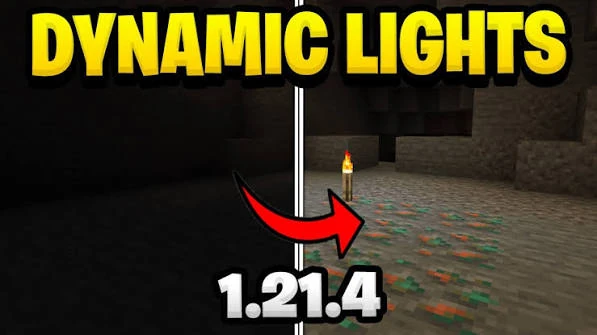
Installing Dynamic Lights Mod is straightforward when the Minecraft version, mod loader, and JAR all match. The download used on this website is dynamiclights-26.2.1NF.jar for Minecraft 26.2 with NeoForge. The safest installation method is to prepare that exact profile first, then add the mod to its mods folder.
This guide focuses on a clean installation rather than shortcuts. A clean process gives you a known starting point and makes any later compatibility issue much easier to diagnose.
Before you start
Back up any world or configuration you care about before making changes to an established modded profile. Dynamic Lights Mod is a lighting mod, but good backup practice applies to every mod change. Keep a copy of important worlds outside the active game folder so an unrelated profile problem does not affect the backup.
Next, confirm which Minecraft instance you are editing. Launchers can maintain separate game directories, which means each profile may have its own mods folder. If you install the JAR into one instance and start another, Minecraft will not see the file.
Prepare Minecraft 26.2 with NeoForge
Create or select a Minecraft 26.2 profile that uses a compatible NeoForge installation. Start that profile once before adding Dynamic Lights Mod. Reaching the game menu successfully tells you the loader and base profile are functioning.
If the base profile already crashes, resolve that first. Adding more mods to a profile that does not launch removes the clean baseline you need for troubleshooting.
Download the Dynamic Lights Mod JAR
Use the direct download button on this website. The JAR is stored in the site package, so the button downloads the mod file itself without sending you to another website. Save dynamiclights-26.2.1NF.jar in a location you can find easily.
Do not extract the JAR. NeoForge expects the mod package in JAR form. If your browser adds a duplicate suffix because you downloaded the file more than once, keep one intended copy and remove unnecessary duplicates before installation.
Place the JAR in the correct mods folder
Open the game directory used by your Minecraft 26.2 NeoForge profile and locate its mods folder. Move or copy the JAR into that folder. If the mods folder does not exist yet, launching the loader profile once can help create the expected directory structure; you can also create the folder when appropriate for your launcher setup.
At this stage, keep the setup simple. If you are installing into a large modpack and something fails, you will not know immediately whether Dynamic Lights Mod, another mod, or a version mismatch caused the issue. A small test profile is often the fastest way to confirm the mod itself works.
Start the matching profile
Launch the same Minecraft 26.2 NeoForge profile. Do not switch to a vanilla, Forge, or different-version profile after copying the JAR. If the game reaches the menu, load a test world or a world you have safely backed up.
Use a dark area for the first lighting check. Equip a supported shining item and move around. The nearby illumination should move with the supported item. Then drop the item and compare the dropped-item lighting behavior.
Add configuration only after the basic test
Once the default behavior works, you can move on to configurable shining items. Add one custom item identifier at a time and test it before adding more. A small, documented configuration is easier to maintain than a large set of changes made all at once.
If a custom item fails while a known supported item works, the installation itself is likely fine. Recheck the item identifier and configuration rather than immediately reinstalling the entire mod.
Common installation problems
- Wrong profile: the JAR is in one game directory while another profile is being launched.
- Wrong loader: the NeoForge JAR is placed in a profile that does not use NeoForge.
- Wrong Minecraft version: the 26.2 build is used with a different game version.
- Duplicate files: more than one copy of the same mod is left in the mods folder.
- Conflict in a large setup: another mod changes rendering or lighting behavior in a way that needs separate testing.
Use a clean test when something goes wrong
If the game crashes or the lighting does not appear, test with the smallest practical mod list. Confirm that NeoForge starts, then add Dynamic Lights Mod by itself or with only required components. If that works, add the rest of the setup back gradually.
This installation method takes a few extra minutes, but it gives you a reliable result. Correct version matching, the right mods folder, one intact JAR, and a simple first test are the four things that prevent most avoidable installation confusion.