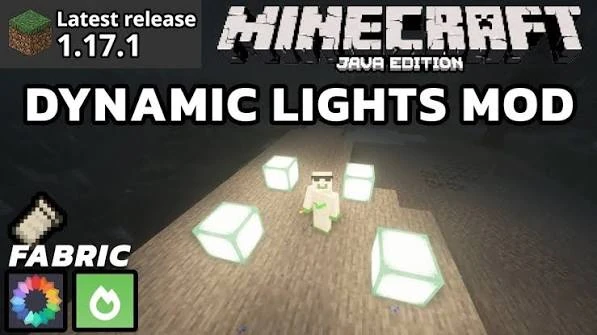
Compatibility for Dynamic Lights Mod starts with three values: Minecraft version, loader, and mod build. The direct file on this website is 26.2.1NF for Minecraft 26.2 with NeoForge. Keeping those values aligned is more important than trying to make one JAR serve every profile.
Minecraft mods are built against specific loader and game environments. A file can belong to the same project and still be the wrong package for your profile if it targets a different loader or Minecraft version.
NeoForge compatibility
The bundled download on this website is the NeoForge JAR. Use it in a Minecraft 26.2 profile that uses NeoForge. Start the profile before adding the mod so you know the base loader installation works.
If you have several NeoForge profiles for different Minecraft versions, check the profile name and game directory carefully. A mod file in the wrong instance will not help the profile you actually launch.
Forge and NeoForge are separate targets
The project can provide separate loader builds. A Forge package and a NeoForge package should be treated as different files. Do not rename a NeoForge JAR and expect it to become a Forge build; the loader target is part of how the mod is built, not just part of the filename.
This website’s primary direct download remains the NeoForge 26.2.1NF file. If your profile uses another loader, obtain and use the package intended for that loader rather than mixing formats.
Minecraft version matching
The current site download targets Minecraft 26.2. Older or newer Minecraft releases can change code and loader requirements, so do not assume the 26.2 JAR is universal. When creating a new profile, choose the game version first, then select the matching loader and mod build.
Version matching also matters when you copy a modpack to another machine. Copying the mods folder without the exact profile information can leave you with a collection of files that no longer matches the launched Minecraft version.
Rendering, shader, and visual mod interactions
Dynamic Lights Mod changes lighting behavior, so other visual or rendering modifications are natural places to look when an effect differs between profiles. A rendering mod may alter how lighting is displayed without changing whether Dynamic Lights Mod itself loaded.
When testing compatibility, use a clean profile first. After held and dropped lighting work, add shader or rendering changes one at a time. If the behavior changes after one addition, you have a much smaller compatibility question to investigate.
Resource packs and visual assets
Resource packs usually change textures and related presentation rather than the mod loader itself, but a heavily customized visual setup can make it harder to judge subtle lighting behavior. If an item appears to glow differently than expected, repeat the test with a simpler visual setup before concluding that the mod is failing.
The goal is not to avoid customization. It is to establish a plain reference result first, then layer visual changes on top of it.
Single-player and multiplayer profiles
For multiplayer, keep the relevant versions consistent across the environment. If a lighting problem appears only on a server, compare the same JAR and item in a single-player test. This can reveal whether the core client setup works and whether the remaining question is specific to the server or modpack combination.
Administrators should record the exact Minecraft, loader, and mod versions used by the server pack. Clear version notes prevent players from installing a similarly named but incompatible file.
Compatibility with modded shining items
Dynamic Lights Mod supports configurable item identifiers, which makes it possible to include additional modded items as shining sources. That flexibility does not guarantee every third-party item will behave identically. Add one identifier at a time and test it with the rest of the setup unchanged.
If default supported items work but a custom modded item does not, focus on the identifier, configuration, and that item’s own behavior before changing the core Dynamic Lights Mod installation.
Compatibility checklist
- Minecraft version: 26.2 for the bundled file.
- Loader: NeoForge for the bundled file.
- Dynamic Lights Mod build: 26.2.1NF.
- One intended JAR in the correct profile’s mods folder.
- Clean lighting test before adding complex rendering changes.
- Custom shining items added gradually.
Compatibility is easiest to manage when every part of the profile has a clear target. Treat the Minecraft version, loader, Dynamic Lights Mod build, and optional rendering changes as separate variables. Once the base combination works, expanding the setup becomes a controlled process instead of guesswork.