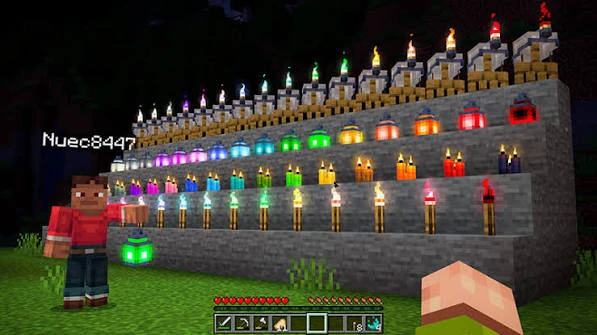
When Dynamic Lights Mod does not behave as expected, start with the simplest facts before changing advanced settings. The website’s bundled file is dynamiclights-26.2.1NF.jar for Minecraft 26.2 with NeoForge. If any part of that combination is different in your profile, correct the mismatch before investigating deeper problems.
Troubleshooting works best when you change one variable at a time. Keep notes about what you remove, add, or edit so you can return to the last working setup.
The game does not launch
First confirm that the Minecraft 26.2 NeoForge profile starts without optional mods. If the base profile fails, Dynamic Lights Mod is not yet the useful troubleshooting target. Fix the loader or profile first.
Then place one intended copy of the Dynamic Lights Mod JAR in the correct mods folder. Remove duplicate copies. Make sure the file has not been extracted and that you are starting the same game directory where the JAR was installed.
The mod appears not to load
If Minecraft starts but you cannot observe dynamic lighting, verify the profile and mods folder again. Multiple launchers can use separate directories. It is easy to copy a JAR into one instance and launch another.
Use a simple dark test area and a known supported shining item. A complicated scene is not a good first diagnostic. The goal is to confirm the most basic held-item behavior before testing special cases.
A supported item does not emit light
Compare the item with another known supported source. If no supported item produces light, focus on installation, loader version, or a broader rendering interaction. If default supported items work and only one custom item fails, focus on the custom item identifier or configuration.
When editing configuration, restore a known working copy and add entries one at a time. This quickly reveals whether the issue follows a particular change.
Held lighting works but dropped lighting looks different
Held and dropped items are different game states, so test them separately. Drop one supported item on a simple surface and observe it without several other entities nearby. If the effect appears only in one state, record exactly which item and environment produce the difference.
Also test in open air if the original scene involves water, unusual block shapes, or enclosed spaces. Environmental differences can help explain why one test behaves differently from another.
Check rendering and visual-mod interactions
Other mods can change lighting, rendering, shaders, or the way the world is drawn. If Dynamic Lights Mod works in a small profile but not in your full setup, disable optional rendering changes and add them back gradually. Do not remove half the profile at random; use a controlled sequence so the result tells you something.
A clean test profile is especially useful here. If the same JAR, Minecraft version, and NeoForge version work in the clean profile, the Dynamic Lights Mod package itself is probably not the only variable involved.
Frame rate drops with many moving lights
Dynamic lights require updates as sources move. A scene containing many active moving lights can require more processing than a scene with only static lighting. Compare the same location with fewer active dynamic sources. Keep the view distance, mod list, and game version unchanged during the comparison.
If performance returns when the number of moving lights is reduced, treat that as a workload result. If performance remains poor even with no active dynamic sources, investigate the wider modded setup as well.
Multiplayer behavior is inconsistent
For multiplayer, make sure the required mod setup and versions are compatible across the environment you are using. If a problem appears only online, compare the same item in a single-player test profile. That separates a general client-side visual problem from a multiplayer-specific configuration or version difference.
Keep server and client update notes when several people manage the setup. “It is installed” is less useful than knowing the exact Minecraft, loader, and mod versions on each side.
A structured reset method
- Back up the affected profile and worlds.
- Confirm Minecraft 26.2 NeoForge launches without optional additions.
- Add only the intended Dynamic Lights Mod JAR.
- Test one known supported shining item in a dark area.
- Add other mods or configuration changes back in small groups.
- Stop when the problem returns and investigate the last change.
Information worth recording
When you need to compare setups, record the Minecraft version, NeoForge version, Dynamic Lights Mod filename, the exact item being tested, whether it is held or dropped, and any rendering mods that are active. If there is a crash, keep the exact error text or relevant log rather than describing it only as “not working.”
Most troubleshooting becomes easier once the setup is reduced to a reproducible test. Dynamic Lights Mod has a focused purpose, so a matched profile, one supported light source, and a simple dark scene usually provide enough information to determine whether the issue is installation, configuration, compatibility, or performance related.