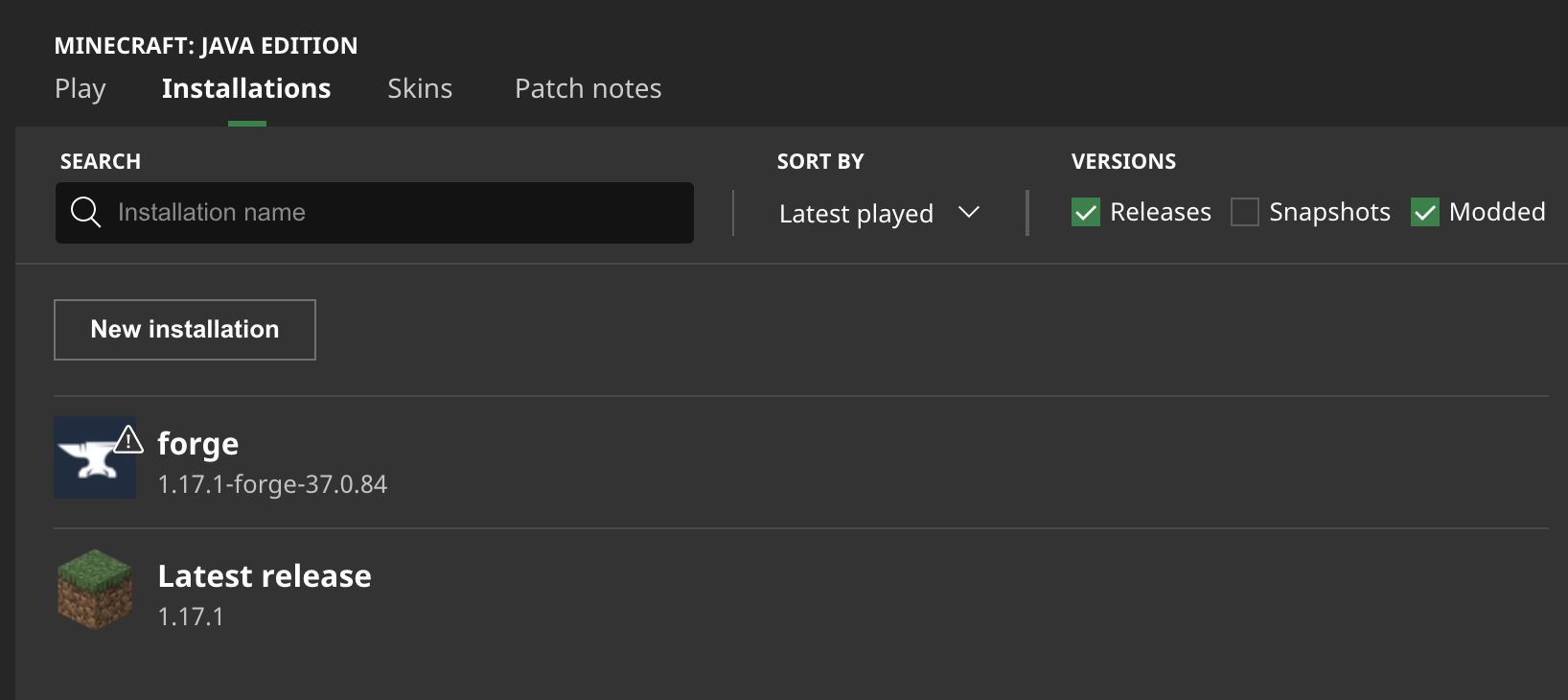
Before You Install
Check your exact Minecraft Java Edition version and select the matching Forge or NeoForge loader. The same file is not automatically compatible with every release.
Step-by-Step Installation
Download the chosen JAR from the project file list. Install the correct loader, open your active profile folder, put the JAR in mods, and launch the modded profile. On Windows, the default mods directory is generally %appdata%\.minecraft\mods.
Test the Lighting
Load a test world, hold a supported luminous item, move through an unlit area, and watch whether illumination follows. Check the settings when an item does not glow.
Multiplayer Notes
The author notes that modern builds require the mod on both client and server for online play. Confirm the requirements of your release.
Download and compatibility reference
The Dynamic Lights author project page lists Forge and NeoForge files. The release file list is the best place to confirm exact compatibility. A direct file link is available from the homepage download section.